SDKDescription
GenuinCoreIncludes the core functionality of the Genuin Ecosystem: Embeds and User authentication.
GenuinUIAdditional UI flows like comments, search, deep-links, notifications, group/community detail etc.
GenuinCameraCamera flows for video content creation.
GenuinAIAdditional flows for AI assisted community/group creation.

Requirements

PlatformMinimum Deployment TargetLanguageSupported OrientationsSupported Destinations
iOS13.0SwiftPortraitiPhone

Permissions (Optional)

Permissions to be added in info.plist file of your application
PermissionUsageUsed WhereIn SDK
Camera (NSCameraUsageDescription)Genuin needs permissions to open your camera and microphone. This allows Genuin to record videos that can be shared with other people.Post, Video CommentGenuinCamera
Microphone (NSMicrophoneUsageDescription)Genuin needs permissions to open your camera and microphone. This allows Genuin to record videos that can be shared with other people.Post, Voice CommentGenuinCamera
Photos (NSPhotoLibraryUsageDescription)Genuin needs permissions to access your photo library. This allows Genuin to download videos to your phone and save it to your library.Post, Profile, BannerGenuinCore
Speech Recognition (NSSpeechRecognitionUsageDescription)The transcript of your recording will be displayed to you in the end for you to overlay it on the audio message.To generate transcript from recorded audioGenuinCamera
Contacts (NSContactsUsageDescription)Genuin requires to sync with your contacts and provide a better experience when you wish to share your posts with them.Add Members in Communities and GroupsGenuinUI
Location (NSLocationWhenInUseUsageDescription)Your precise location will help us suggest your community details more accurately.AI Powered Communities based on the User LocationGenuinCore
Tracking (NSUserTrackingUsageDescription)Your data will be used to analyse ads we run!MonetizationGenuinCore
If any permission is not given then that particular feature will not be accessible in your app.

Installation

Using Swift Package Manager (SPM)

To add Genuin SDK to your iOS project via Swift Package Manager: 1. In Xcode, go to: File > Swift Packages > Add Package Dependency 2. When prompted, enter the Genuin SDK repository URL:
https://github.com/genuininc/genuin_ios_sdk
3. Choose the version:
Version: 2.1.1
Note: Make sure all Genuin SDK modules are added with the same version (2.1.1) for compatibility. Module Dependency Structure The Genuin SDK is composed of multiple interdependent modules. These follow a linear dependency chain as outlined below:
ai ← camera ← ui ← core
Integration Rules
  1. core - Can be used independently. It is the foundation for all other modules.
  2. ui - Requires core. Must be added together.
  3. camera - Requires both core and ui.
  4. ai - Requires camera, ui, and core.
Ensure modules are added in the correct order and with the same version to avoid conflicts during build and runtime.

Using Cocoapods

If your project doesn’t have the CocoaPods setup then start with pod init which will create the Podfile, else do following changes in the pod file to install GenuinSDK.
platform :ios, '13.0'

target 'YourProject' do
  use_frameworks!

  # Pods for YourProject

genuin_sdk_version = '2.1.1'

pod "GenuinCore", :git => "https://github.com/genuininc/genuin_ios_sdk.git", :tag => genuin_sdk_version
pod "GenuinUI", :git => "https://github.com/genuininc/genuin_ios_sdk.git", :tag => genuin_sdk_version
pod "GenuinCamera", :git => "https://github.com/genuininc/genuin_ios_sdk.git", :tag => genuin_sdk_version
pod "GenuinAI", :git => "https://github.com/genuininc/genuin_ios_sdk.git", :tag => genuin_sdk_version


end

post_install do |installer|
  installer.pods_project.targets.each do |target|
    if target.name == 'Giphy'
      `xcrun -sdk iphoneos bitcode_strip -r Pods/Giphy/GiphySDK/GiphyUISDK.xcframework/ios-arm64_armv7/GiphyUISDK.framework/GiphyUISDK -o Pods/Giphy/GiphySDK/GiphyUISDK.xcframework/ios-arm64_armv7/GiphyUISDK.framework/GiphyUISDK`
    end
    target.build_configurations.each do |config|
      config.build_settings['IPHONEOS_DEPLOYMENT_TARGET'] = '13.0'
      config.build_settings['BUILD_LIBRARY_FOR_DISTRIBUTION'] = 'YES'
    end
  end
end
a. For Core SDK:
pod "GenuinCore", :git => "https://github.com/genuininc/genuin_ios_sdk.git", :tag => genuin_sdk_version

b. For UI SDK:
pod "GenuinUI", :git => "https://github.com/genuininc/genuin_ios_sdk.git", :tag => genuin_sdk_version

c. For Camera SDK:
pod "GenuinCamera", :git => "https://github.com/genuininc/genuin_ios_sdk.git", :tag => genuin_sdk_version

d. For AI SDK:
pod "GenuinAI", :git => "https://github.com/genuininc/genuin_ios_sdk.git", :tag => genuin_sdk_version
Example Import the GenuinSDK module in your SceneDelegate/AppDelegate.
import GenuinCore

func scene(_ scene: UIScene, willConnectTo session: UISceneSession, options connectionOptions: UIScene.ConnectionOptions) {
    // Optional configuration and attaching the UIWindow to UIWindowScene
    guard let _ = (scene as? UIWindowScene) else { return }

    // Initialize the SDK configuration 
    let configuration = GenuinConfiguration.shared

    // For Production environment (Default)
    configuration.setCustomLoader("YOUR_LOADER", bundle: .main)

    // For QA Environment
    configuration.environment = .qa 

    // Initialize the SDK with your API key and configuration
    GenuinSDK.shared.initialize(apiKey: "YOUR_API_KEY", configuration: configuration)

    // Notify the SDK that the scene will connect
    GenuinSDK.shared.scene(scene, willConnectTo: session, options: connectionOptions)
}

Cocoapods (with all sdk initialize)
GenuinUI.shared.initialize() //Initialize method is required if GenuinUI sdk is integrated
GenuinCamera.shared.initialize() //Initialize method is required if GenuinCamera sdk is integrated
GenuinAI.shared.initialize() //Initialize method is required if GenuinAI sdk is integrated

GenuinSDK.shared.initialize(apiKey: "YOUR_API_KEY", configuration: configuration)

To load your lottie animation accross the Genuin SDK, you can add it here configuration.setCustomLoader("YOUR_LOADER", bundle: .main)

Instructions for SceneDelegate:

  1. Ensure you are using the UISceneDelegate in your app.
  2. In your SceneDelegate.swift file, implement the scene(_:willConnectTo:options:) method.
  3. Use the shared configuration and set up any custom loaders or additional parameters.
  4. Call GenuinSDK.shared.initialize(apiKey: "YOUR_API_KEY", configuration: configuration) with your API key and the configured options.
  5. Ensure that GenuinSDK.shared.scene(scene, willConnectTo: session, options: connectionOptions) is called to notify the SDK of the scene connection.

Instructions for AppDelegate:

  1. In your AppDelegate.swift, implement the application(_:didFinishLaunchingWithOptions:) method.
  2. Set up the shared configuration and initialize the SDK with your API key.
  3. Call GenuinSDK.shared.initialize(apiKey: "YOUR_API_KEY", configuration: configuration) with your API key and the configured options.
  4. Return true to indicate successful launch configuration.

import GenuinCore
import GenuinUI
import GenuinCamera
import GenuinAI

func scene(_ scene: UIScene, willConnectTo session: UISceneSession, options connectionOptions: UIScene.ConnectionOptions) {
    // Optional configuration and attaching the UIWindow to UIWindowScene
    guard let _ = (scene as? UIWindowScene) else { return }

    // Initialize the SDK configuration 
    let configuration = GenuinConfiguration.shared

    // For Production environment (Default)
    configuration.setCustomLoader("YOUR_LOADER", bundle: .main)

    // For QA Environment
    configuration.environment = .qa 

    GenuinUI.shared.initialize() //Initialize method is required if GenuinUI sdk is integrated
    GenuinCamera.shared.initialize() //Initialize method is required if GenuinCamera sdk is integrated
    GenuinAI.shared.initialize() //Initialize method is required if GenuinAI sdk is integrated


    // Initialize the SDK with your API key and configuration
    GenuinSDK.shared.initialize(apiKey: "YOUR_API_KEY", configuration: configuration)
} 

Instructions for SwiftUI:

In your SwiftUI’s App file initialize the GenuinSDK as follows:
import SwiftUI
import GenuinCore
import GenuinUI
import GenuinAI
import GenuinCamera

@main
struct GenuinSwiftUIApp: App {
    
    init() {
        let configuration = GenuinConfiguration()

        // For QA Environment
        configuration.environment = .qa

        configuration.setCustomLoader("YOUR_LOADER", bundle: Bundle.main)
        GenuinUI.shared.initialize()
        GenuinCamera.shared.initialize()
        GenuinAI.shared.initialize()
        GenuinSDK.shared.initialize(apiKey: "YOUR_API_KEY", configuration: configuration)
    }
    
    var body: some Scene {
        WindowGroup {
            ContentView()
        }
    }
}

Note: Our SDK is well optimized for iOS version 15.0 and above, but if you are using iOS version 13 or 14 then put this if #available(iOS 15.0, *) condition while importing the GenuinSDK.

Monetization

To enable Monetization use following code snippet to get advertisingIdentifier by AppTrackingTranspancy. You need to add NSUserTrackingUsageDescription in Info.plist as described here.

import AppTrackingTransparency
import AdSupport //Import only if you want to use advertisingIdentifier

class SceneDelegate: UIResponder, UIWindowSceneDelegate {

   func sceneDidBecomeActive(_ scene: UIScene) {
        // Called when the scene has moved from an inactive state to an active state.
        // Use this method to restart any tasks that were paused (or not yet started) when the scene was inactive.
        DispatchQueue.main.async {
            ATTrackingManager.requestTrackingAuthorization { status in
                switch status {
                case .notDetermined:
                    break
                case .restricted:
                    break
                case .denied:
                    break
                case .authorized:
                    // If you want to check the current advertisingIdentifier
                    print("advertisingIdentifier: ", ASIdentifierManager.shared().advertisingIdentifier.uuidString)
                    break
                @unknown default:
                    break
                }
            }
        }
    }

}

Also if you enable monetization then you need to update App Privacy in AppStoreConnect
Need to declare in App Store Connect that your app is using Advertising DataSteps:
  • Log in to your App Store Connect.
  • Select the app you are working on.
  • Go to App Privacy > Data Collection.
  • Find the Usage Data section and select the Advertising Data.
  • Click on Save/Publish.
  • Now Setup Advertising Data by selecting (Third-Party Advertising, Analytics, Product Personalization, App Functionality, Other Purposes)
  • Click on Next and give the answers as asked.
  • Click on save.

Embed with Swift

Note: Make sure you have followed the installation steps in order to implement the Carousel Embed.
Note: In order to migrate from GenuinSDK 1.0 to 2.0, you need to replace import GenuinSDK to import GenuinCore in your codebase.
Refer to Carousel View in Mobile
We have introduced new attribute GenuinEmbedAttributes that holds all the required data attributes needed to create and initialize an embed. You can initialize it with the following parameters:

init(
    embedId: String,
    uniqueId: String? = nil,
    viewController: UIViewController,
    ssoToken: String? = nil,
    params: [String: Any]? = nil,
    contextualParams: [String: Any]? = nil,
    embedConfiguration: EmbedConfiguration = EmbedConfiguration()
)


Parameters
  • embedId: String – The identifier for the embed.
  • uniqueId: String? (optional) – A unique identifier, if needed.
  • viewController: UIViewController – The parent view controller for presenting the embed.
  • ssoToken: String? (optional) – Single Sign-On token for authentication.
  • params: [String: Any]? (optional) – Additional parameters for customization.
  • contextualParams: [String: Any]? (optional) – Context-specific parameters for the embed.
  • embedConfiguration: EmbedConfiguration (optional) – Configuration object for customizing embed behavior. Defaults to a new EmbedConfiguration instance.
Creating and Loading an Embed You can create and load a GenuinEmbedView in following ways:

Approach 01

let embedConfiguration = EmbedConfiguration()
embedConfiguration.isShowProfileEnabled = false
embedConfiguration.isDirectDeepLinkEnabled = false

GenuinSDK.shared.initializeEmbed(embedId: "YOUR_EMBED_ID", containerView: <YOUR_CONTAINER_VIEW>, viewConroller: <YOUR_VIEW_CONTROLLER>, ssoToken: <YOUR_SSO_TOKEN>, embedConfiguration: embedConfiguration)
Note: To fetch the Embed you need to add YOUR_EMBED_ID, YOUR_CONTAINER_VIEW in which you want the embed, and YOUR_VIEW_CONTROLLER containing your container view, while calling the below function. For auto login in the SDK, you shall pass “YOUR_SSO_TOKEN” in order to implement Embed with SSO in your app.

Approach 02

Initialize with Attributes During Creation Create the GenuinEmbedAttributes first, then pass it directly while initializing the embed view:

// Below is an Example Code

let attributes = GenuinEmbedAttributes(embedId: YOUR_EMBED_ID, viewController: YOUR_VIEW_CONTROLLER)
let embedView = GenuinEmbedView(attributes: attributes)
self.YOUR_VIEW.addSubview(embedView)
embedView.fetchDataAndLoad()

Approach 03

Initialize First, Then Set Attributes Create the embed view first and assign the attributes afterward:

// Below is an Example Code

let embedView = GenuinEmbedView()
let attributes = GenuinEmbedAttributes(embedId: YOUR_EMBED_ID, viewController: YOUR_VIEW_CONTROLLER)
embedView.initWith(attributes: attributes)
self.YOUR_VIEW.addSubview(embedView)
embedView.fetchDataAndLoad()


Approach 04

Adding the Embed View in a Storyboard Steps:
  1. When using Interface Builder, first create a wrapper view with your preferred height and constraints. This wrapper will serve as the container for the GenuinEmbedView.
  2. Drag a UIView for embed and add it inside your wrapper view.
  3. Set the embed view’s class to GenuinEmbedView in the Identity Inspector.
  4. If a module for the specified class does not appear , then set the module as GenuinCore in the module field below the class.
  5. Connect it to an @IBOutlet in your view controller (e.g., embedView).
  6. Example: Initialize and Load with an Outlet

@IBOutlet weak var embedView: GenuinEmbedView?

func loadEmbed() {
    //specify your attributes
    let attributes = GenuinEmbedAttributes(embedId: YOUR_EMEBED_ID,
                                           viewController: YOUR_VIEW_CONTROLLER)
    embedView?.initWith(attributes: attributes)
    embedView?.fetchDataAndLoad()
}

  1. Call loadEmbed() to initialize and load the embed.
Check the additional information here.

Full Screen Embed

let embedConfiguration = EmbedConfiguration()
embedConfiguration.isShowProfileEnabled = false
embedConfiguration.isDirectDeepLinkEnabled = false

GenuinSDK.shared.initializeEmbedFeed(embedId: "YOUR_EMBED_ID", containerView: <YOUR_CONTAINER_VIEW>, viewConroller: <YOUR_VIEW_CONTROLLER>, ssoToken: <YOUR_SSO_TOKEN>, embedConfiguration: embedConfiguration)
Note: To fetch the Embed you need to add YOUR_EMBED_ID, YOUR_CONTAINER_VIEW in which you want the embed, and YOUR_VIEW_CONTROLLER containing your container view, while calling the above function. For auto login in the SDK, you shall pass “YOUR_SSO_TOKEN” in order to implement Embed with SSO in your app.

Standard Wall Embed

import GenuinCore

class StandardWallFeedViewController: UIViewController {

    override func viewDidLoad() {
        super.viewDidLoad()

        // Do any additional setup after loading the view.
        let embedConfiguration = EmbedConfiguration()
        embedConfiguration.isShowProfileEnabled = true
        
        GenuinSDK.shared.initializeStandardWall(embedId: "YOUR_EMBED_ID", containerView: self.view, viewConroller: self, embedConfiguration: embedConfiguration)
        
    }

}
Note: To fetch the Embed you need to add YOUR_EMBED_ID while calling the above function.

Embed with SwiftUI

Refer to Carousel View in Mobile
Genuin Carousel Embed View Wrapper
import SwiftUI
import UIKit
import GenuinCore

struct GenuinCarouselViewWrapper: UIViewRepresentable {
    var embedId: String
    
    func makeUIView(context: Context) -> UIView {
        let container = UIView()
        return container
    }

    func updateUIView(_ uiView: UIView, context: Context) {
        DispatchQueue.main.async {
            guard let parentVC = uiView.parentViewController else {
                print("Could not get parent VC!")
                return
            }

            let embedConfiguration = EmbedConfiguration()

            GenuinSDK.shared.initializeEmbed(
                embedId: embedId,
                containerView: uiView,
                viewConroller: parentVC,
                embedConfiguration: embedConfiguration
            )
        }
    }
}

Example Usage
import SwiftUI

struct CarouselView: View {
    var body: some View {
        VStack {
            GenuinCarouselViewWrapper(embedId: "YOUR_EMBED_ID")
                .frame(height: 200)
            
            Spacer()
        }
    }
}

#Preview {
    CarouselView()
}


Standard Wall Embed

Standard Wall View Wrapper
import SwiftUI
import GenuinCore

struct GenuinSDKStandardWallNavigationControllerWrapper: UIViewControllerRepresentable {
    var embedId: String
    
    func makeUIViewController(context: Context) -> UINavigationController {
        // Return the UIKit UINavigationController from the SDK
        let embedConfiguration = EmbedConfiguration()
        
        return GenuinSDK.shared.getStandardWallController(embedId: embedId, embedConfiguration: embedConfiguration) ?? UINavigationController()
    }

    func updateUIViewController(_ uiViewController: UINavigationController, context: Context) {
        // No update logic needed unless the SDK content needs to change dynamically
    }
}

Example Usage
import SwiftUI

struct StandardWallView: View {
    var body: some View {
        GenuinSDKStandardWallNavigationControllerWrapper(embedId: "YOUR_EMBED_ID")
            .edgesIgnoringSafeArea(.top)
    }
}

#Preview {
    StandardWallView()
}

Note: To fetch the Embed you need to add YOUR_EMBED_ID while calling the above function.

Additional Information

To configure the EmbedConfiguration based on your need you can change the below values.
  1. isShowProfileEnabled = This is an optional boolean parameter. Default value is false. If this parameter is true and also if user is logged in than Profile picture will be visible in full screen view (right side top corner). On clicking the profile picture user will see the account settings and logout options.
  2. isDirectDeepLinkEnabled = This is an optional boolean parameter. Default value is false. If this parameter is true then all the interaction/clicks in the full screen view will redirect to the specific video in white labelled app associated with video and also value of this parameter “interactionDeepLink” will be ignored. If not passed then the regular flow will work.
  3. interactionDeepLink = This is an optional parameter. You can pass a deeplink URL in this parameter. If a deeplink URL is given then all the interaction/clicks in the full screen view will redirect to the deeplink URL given. If not passed then the regular flow will work. It should be a correct URL else user will not be redirected.
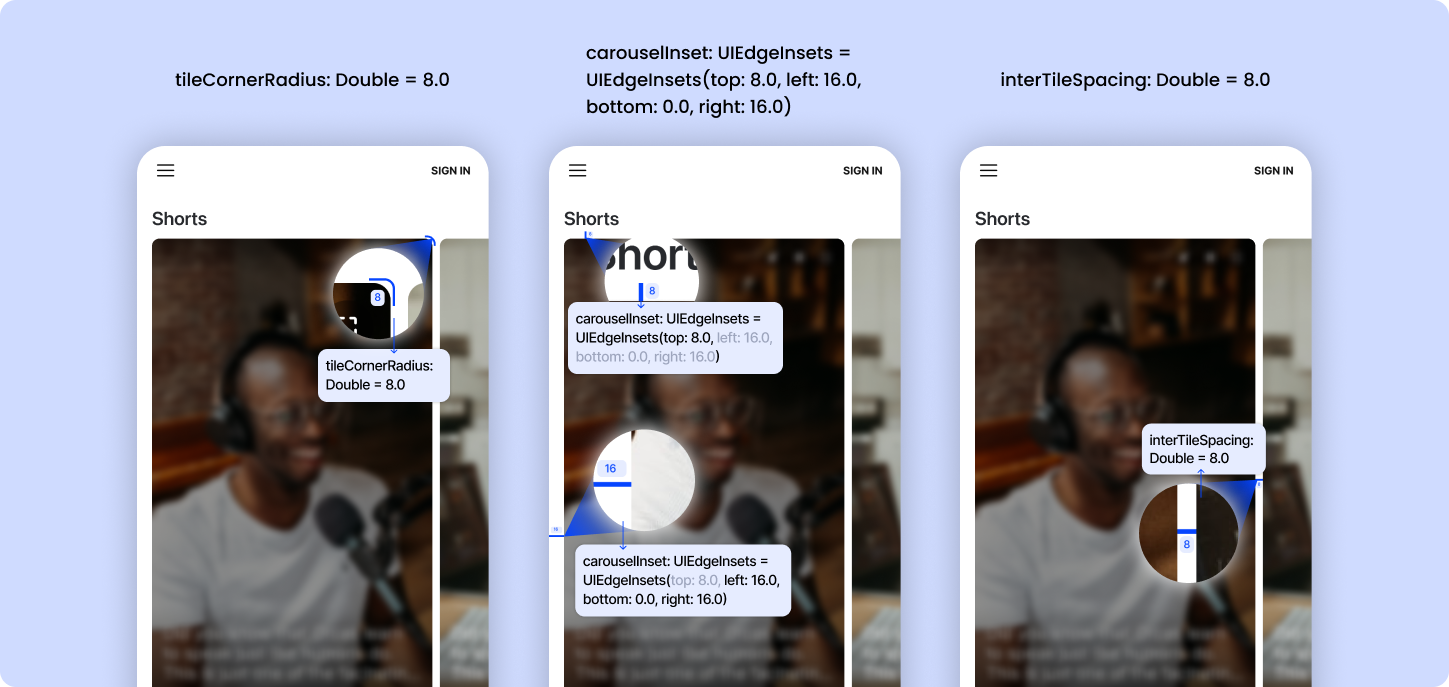
  4. genuinCarouselConfiguration = This is an optional parameter. You can pass GenuinCarouselConfiguration object in this parameter. If GenuinCarouselConfiguration is provided then the carousel design will change accordingly. The default values are listed below, which you can pass in GenuinCarouselConfiguration object.
    • interTileSpacing - spacing between the carousel’s collection view items. It’s default value is 8.0
    • viewInset - edge insets for carousel’s collection view. It’s default value is UIEdgeInsets(top: 8.0, left: 16.0, bottom: 0.0, right: 16.0)
    • tileCornerRadius - cornerRadius for the carousel’s collection view items. It’s default value is 8.0
Below are the optional parameters for the params key:
  1. name - This is an optional string parameter. Pass this parameter for ‘signup/login’.
  2. mobile - This is an optional string parameter. Pass this parameter for signup/login.
  3. email - This is an optional string parameter. Pass this parameter for signup/login.
  4. nickname - This is an optional string parameter. If nickname is available in genuin ecosystem it will be used, else genuin will generate of its own.
  5. profile_image: This is an optional string parameter. Pass the profile_image parameter if you want to show the profile image in the SDK.
Below are the optional parameters for the contextualParams key:
  1. page_context - This is an optional string parameter. Pass this parameter for ‘context’, so that feed could load based on that context.
  2. lat - This is an optional float parameter. Pass this parameter in geo so that the feed could load based on the latitude and context.
  3. long - This is an optional float parameter. Pass this parameter in geo so that the feed could load based on the longitude and context.
Note: lat and long both parameters shall be passed in order to implement the contextual feed based on the location.
Example

GenuinSDK.shared.initializeEmbed(embedId: "EMBED_ID", uniqueId: "YOUR_UNIQUE_ID", containerView: YOUR_VIEW, viewConroller: YOUR_VIEW_CONTROLLER, ssoToken: "YOUR_TOKEN", params: ["name" :"FULL_NAME", "nickname" : "USER_NAME", "mobile" :"MOBILE_NUMBER"], embedConfiguration: embedConfiguration)

Note: You can pass above parameters in GenuinEmbedAttributes as well

Placement with Swift

Note: Make sure you have followed the installation steps in order to implement the Carousel Embed.
Note: In order to migrate from GenuinSDK 1.0 to 2.0, you need to replace import GenuinSDK to import GenuinCore in your codebase.
GenuinPlacementAttributes We have introduced new attribute GenuinPlacementAttributes which is used to hold all the necessary data for creating and initializing a placement view. You can initialize it with the following parameters:

init(
    placementId: String,
    styleId: String,
    uniqueId: String? = nil,
    viewController: UIViewController,
    ssoToken: String? = nil,
    params: [String: Any]? = nil,
    contextualParams: [String: Any]? = nil,
    placementConfiguration: PlacementConfiguration = PlacementConfiguration()
)


Parameters
  • placementId: String – Identifier for the placement.
  • styleId: String – Identifier for the placement style.
  • uniqueId: String? (optional) – Unique identifier for this placement instance.
  • viewController: UIViewController – Parent view controller that will present the placement.
  • ssoToken: String? (optional) – Single Sign-On token for authentication.
  • params: [String: Any]? (optional) – Additional parameters to customize the placement.
  • contextualParams: [String: Any]? (optional) – Context-specific parameters for the placement.
  • placementConfiguration: PlacementConfiguration (optional) – Custom configuration object. Defaults to a new instance of PlacementConfiguration.
Creating and Loading an Placement You can create and load a GenuinPlacementView in following ways:

Approach 01

Initialize placement

let placementConfiguration = PlacementConfiguration()

GenuinSDK.shared.initializePlacement(
    placementId: "PLACEMENT_ID",
    styleId: "STYLE_ID",
    containerView: YOUR_CONTAINER_VIEW,
    viewController: YOUR_CONTROLLER,
    contextualParams: [
        "page_context": "<PAGE_CONTEXT>",
        "geo": [
            "lat": XX.XXX,          // Float or Double
            "long": XX.XXX,         // Float or Double
            "radius_limit": <RADIUS_LIMIT> // Int
        ],
        "place": [
            "country": "<COUNTRY_CODE>",
            "state": "<STATE>",
            "city": "<CITY>",
            "zipcode": <ZIP>        // Int
        ],
        "time": <timestamp>,        // Long
        "user_segments": [
            "age": "<AGE>",
            "min_age": "<MIN_AGE>",
            "max_age": "<MAX_AGE>",
            "segment": "<SEGMENT>",
            "gender": "M/F/O",
            "race": "<RACE>"
        ],
        "url": "https://url/",
        "brands_ids": [
            brandId1,               // Int
            brandId2                // Int
        ],
        "user_interests": [""],
        "posted_by_user_ids": [
            "user_id1",
            "user_id2"
        ],
        "previous_page_context": "<PREVIOUS_PAGE_CONTEXT>",
        "user_context": "<CONTEXT>"
    ],
    placementConfiguration: placementConfiguration
)

Approach 02

Initialize with Attributes During Creation Create the GenuinPlacementAttributes first, then pass it directly while initializing the placement view:

let attributes = GenuinPlacementAttributes(
    placementId: "YOUR_PLACEMENT_ID",
    styleId: "YOUR_PLACEMENT_STYLE_ID",
    viewController: YOUR_VIEW_CONTROLLER
)

let placementView = GenuinPlacementView(attributes: attributes)
self.YOUR_VIEW.addSubview(placementView)
placementView.fetchDataAndLoad()

Approach 03

Initialize First, Then Set Attributes Create the placement view first and assign the attributes afterward:

let placementView = GenuinPlacementView()
let attributes = GenuinPlacementAttributes(
    placementId: "YOUR_PLACEMENT_ID",
    styleId: "YOUR_PLACEMENT_STYLE_ID",
    viewController: YOUR_VIEW_CONTROLLER
)
placementView.initWith(attributes: attributes)
self.YOUR_VIEW.addSubview(placementView)
placementView.fetchDataAndLoad()

Approach 04

Adding the Placement View in a Storyboard Steps:
  1. When using Interface Builder, first create a wrapper view with your preferred height and constraints. This wrapper will serve as the container for the GenuinPlacementView.
  2. Drag a UIView for placement and add it inside your wrapper view.
  3. Set the placement view’s class to GenuinPlacementView in the Identity Inspector.
  4. If a module for the specified class does not appear , then set the module as GenuinCore in the module field below the class.
  5. Connect it to an @IBOutlet in your view controller (e.g., placementView).
  6. Example: Initialize and Load with an Outlet

@IBOutlet weak var placementView: GenuinPlacementView?

func loadPlacement() {
    let attributes = GenuinPlacementAttributes(
        placementId: "YOUR_PLACEMENT_ID",
        styleId: "YOUR_PLACEMENT_STYLE_ID",
        viewController: YOUR_VIEW_CONTROLLER
    )
    placementView?.initWith(attributes: attributes)
    placementView?.fetchDataAndLoad()
}

  1. Call loadPlacement() to initialize and load the placement.

Loading Embed and Placement Views in the Background

You can fetch data for an embed or placement view in the background as per your requirement and add it to your view hierarchy once the data is ready.

Example: Loading an Embed in the Background


let embedView = GenuinEmbedView()
let attributes = GenuinEmbedAttributes(
    embedId: YOUR_EMBED_ID,
    viewController: YOUR_VIEW_CONTROLLER
)
    
embedView.initWith(attributes: attributes)
    
embedView.fetchDataInBackground { success in
    if success {
        self.YOUR_VIEW.addSubview(embedView)
        embedView.load()
    }
}

Example: Loading a Placement in the Background


let placementView = GenuinPlacementView()
let attributes = GenuinPlacementAttributes(
    placementId: "YOUR_PLACEMENT_ID",
    styleId: "YOUR_PLACEMENT_STYLE_ID",
    viewController: YOUR_VIEW_CONTROLLER
)
    
placementView.initWith(attributes: attributes)
    
placementView.fetchDataInBackground { success in
    if success {
        self.YOUR_VIEW.addSubview(placementView)
        placementView.load()
    }
}

Handle Login : via AutoLogin Approach

To Auto Login in the SDK, You need to call below method, whenever user is log in to your application.
Note: You don’t need to call the below method if you have implemented the Embed With SSO already.
 GenuinSDK.shared.ssoLogin(ssoToken: "YOUR_SSO_TOKEN")
Handle AutoLogin in Embed

GenuinSDK.shared.initializeEmbed(embedId: "EMBED_ID", uniqueId: "YOUR_UNIQUE_ID", containerView: YOUR_VIEW, viewConroller: YOUR_VIEW_CONTROLLER, ssoToken: "YOUR_SSO_TOKEN", params: ["name" :"FULL_NAME", "nickname" : "USER_NAME", "mobile" :"MOBILE_NO"], contextualParams: ["page_context": "CONTEXT_TEXT", "geo": { "lat": LATITUDE_VALUE, "long": LONGITUDE_VALUE }], embedConfiguration: embedConfiguration)

Custom Login

If you want to handle login process as per your requirement then follow the below steps: Step 1: Assign Delegate while initializing Genuin SDK

GenuinSDK.shared.delegate = self ( YOUR_ANY_CLASS )

Step 2: Extend GenuinDelegate & Present your own controller on provided base controller

extension YOUR_ANY_CLASS : GenuinDelegate{
  func presentLoginViewController(baseViewController : UIViewController) {
    guard let loginVC = GET AND ASSIGN YOUR CONTROLLER
    baseViewController.present(loginVC, animated: true)
  }
}

Step 3: Must call below login service from Genuin, to keep user logged in, in Genuin SDK.

GenuinSDK.shared.ssoLogin(ssoToken: "YOUR_SSO_TOKEN", params: ["name" : "FULL_NAME", "nickname" : "USER_NAME"])

Handle Logout : via AutoLogin Approach

Whenever user logs out from your application call the below method.
GenuinSDK.shared.ssoLogout()
Note: Make sure you have followed the installation steps in order to handle the deep links.
Prerequisite:
  1. Make sure you have white labelled your community by following these steps
  2. Enable Associated Domains in Certificates, Identifiers & Profiles using your Apple Developer account at https://developer.apple.com/account/resources/identifiers/list
  3. Create apple-app-site-association (without extension) file with following settings:
{"appclips":{"apps":["YOUR_TEAM_ID.APP_BUNDLE_ID.Clip"]},"applinks":{"apps":[],"details":[{"paths":["/*"],"appID":"YOUR_TEAM_ID.APP_BUNDLE_ID"}]}}
Once the file is created, host it on the white labeled domain at https://YOUR_WHITE-LABELLED_DOMAIN/.well-known/apple-app-site-association
  1. Add Associated Domains in capabilities if not already,
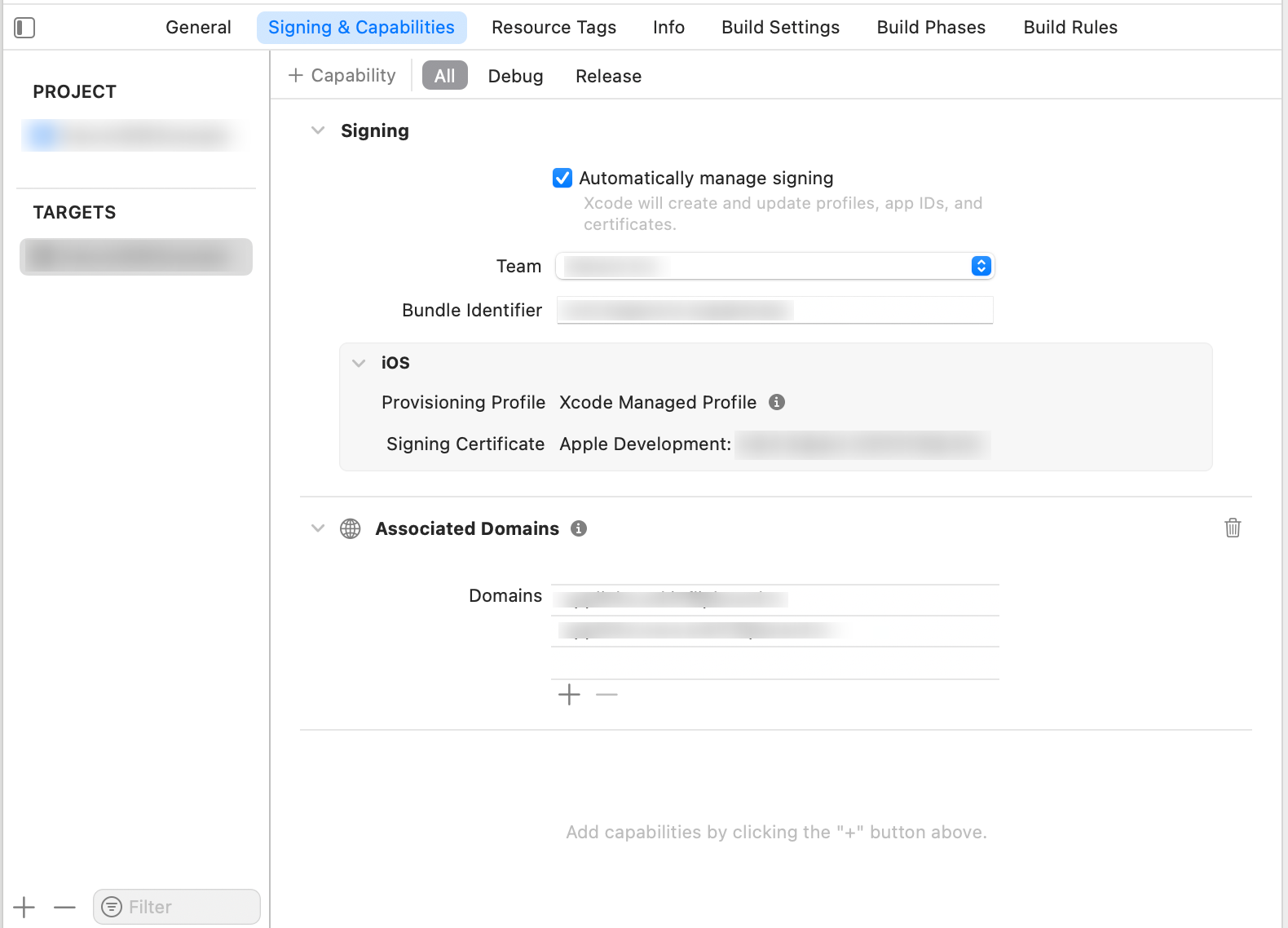
Add applinks in domains, for Example: applinks: YOUR_WHITE-LABELLED_DOMAIN applinks: www.YOUR_WHITE-LABELLED_DOMAIN To handle deep links in your app use the following methods.

class SceneDelegate: UIResponder, UIWindowSceneDelegate {

  var window: UIWindow?

  func scene(_ scene: UIScene, willConnectTo session: UISceneSession, options connectionOptions: UIScene.ConnectionOptions) {
    // Use this method to optionally configure and attach the UIWindow `window` to the provided UIWindowScene `scene`.
    // If using a storyboard, the `window` property will automatically be initialized and attached to the scene.
    // This delegate does not imply the connecting scene or session are new (see `application:configurationForConnectingSceneSession` instead).
    guard let _ = (scene as? UIWindowScene) else { return }
    handleGenuinDeeplink(deeplinkURL: connectionOptions.userActivities.first?.webpageURL)
  }

  func scene(_ scene: UIScene, continue userActivity: NSUserActivity) {
    //redirect if genuin SDK handles the deeplink
    handleGenuinDeeplink(deeplinkURL: userActivity.webpageURL)
  }

  func handleGenuinDeeplink(deeplinkURL: URL?) {
    if let dlURL = deeplinkURL, GenuinSDK.shared.willHandleDeepLink(url: dlURL){
       
      if let rootVC = window?.rootViewController as? UIViewController{
        DispatchQueue.main.async {
          GenuinSDK.shared.handleDeeplink(viewController: rootVC)
        }
      }
    }
  }
}

Note: GenuinSDK.shared.willHandleDeepLink(url: dlURL) function will check whether GenuinSDK will handle the given deeplink or not. You can use it according to your deeplink redirection flow.

Instructions for SceneDelegate:

Handle deep links using the root view controller by calling GenuinSDK.shared.handleDeeplink(viewController: rootVC).

Instructions for AppDelegate:

Use GenuinSDK.shared.handleDeeplink(viewController: rootVC) to manage the deep link using the app’s root view controller.
Note:
  1. To handle the Deeplink from another controller call the GenuinSDK.shared.handleDeeplink(viewController: vc) function from specific controller
  2. If you are following the SceneDelegate method then calling this GenuinSDK.shared.handleDeeplink(viewController: self) function is mandatory

override func viewDidAppear(_ animated: Bool) {
    super.viewDidAppear(animated)
    GenuinSDK.shared.handleDeeplink(viewController: self)
}

Optional LinkOutInterceptor

If you want to intercept Linkout clicks, you can implement GenuinLinkOutInterceptorDelegate as below: Step 1: Assign Delegate GenuinLinkOutInterceptorDelegate:

GenuinSDK.shared.registerLinkoutInterceptor(associateDomains: [ARRAY_OF_ASSOCIATED_DOMAINS_HANDLED_BY_YOUR_APP], linkOutInterceptorDelegate: YOUR_ANY_CLASS)

Note:ARRAY_OF_ASSOCIATED_DOMAINS_HANDLED_BY_YOUR_APP accepts associcated domains supported by your apps. You can pass comma seperated domains like e.g. [“apple.com”, “https://apple.com”, “www.apple.com”, “applinks:apple.com”]YOUR_ANY_CLASS can be class which you want to handle the delegate method in.
Step 2: Handle callback method
extension YOUR_ANY_CLASS : GenuinLinkOutInterceptorDelegate{
  func onLinkOutIntercept(urlString: String, viewController: UIViewController?) {
    	/*
         This callback will be triggered when user clicks on linkouts from any video and if it's domain matches the associateDomains provided.
         
         You will receive the url clicked and a current controller so you can handle the deeplink redirection from here in your app
        */
  }
}

Handling Push Notifications

Using Firebase

  1. Create an app in your firebase console by following these steps
  2. Download the GoogleService-Info.plist file and add it in xcode project
  3. Add pod in pod file

pod 'FirebaseMessaging', '~> 10.24.0'

  1. To enable the push notifications functionality then enable the Push Notifications in your target. To do so, Select the target > Signing & Capabilities > Add Capability of Push Notification
  2. Import

import FirebaseMessaging
import GenuinCore

AppDelegate

func application(_ application: UIApplication, didRegisterForRemoteNotificationsWithDeviceToken deviceToken: Data) {
	//Assign APNS token and notify sdk
        Messaging.messaging().apnsToken = deviceToken 
        GenuinSDK.shared.application(application, didRegisterForRemoteNotificationsWithDeviceToken: deviceToken, isFCMIntegrated: true) 

    }

Note: Pass true value in isFCMIntegrated parameter, as we are using the Firebase.
  1. Initialize
SceneDelegate

func scene(_ scene: UIScene, willConnectTo session: UISceneSession, options connectionOptions: UIScene.ConnectionOptions) {
        guard let _ = (scene as? UIWindowScene) else { return }
	//Register the notification
        registerForNotification()
	 //configure firebase
        FirebaseApp.configure() 
	 //set delegate , extend current class with MessagingDelegate
        Messaging.messaging().delegate = self   
    }

  1. Place this code to take the user permission for Push Notification

func registerForNotification(){
	//Take permission and register remote notification
        let current = UNUserNotificationCenter.current()
        current.getNotificationSettings(completionHandler: { (settings) in
            if settings.authorizationStatus == .notDetermined{
                self.requestForNotificationPermission()
            }else if settings.authorizationStatus == .authorized {
                UNUserNotificationCenter.current().delegate = self
                DispatchQueue.main.async{
                    UIApplication.shared.registerForRemoteNotifications()
                }
            }
        })
    }
    
    private func requestForNotificationPermission(){
        UNUserNotificationCenter.current().delegate = self
        UNUserNotificationCenter.current().requestAuthorization(options:[.badge, .alert, .sound]){ (granted, error) in
            print(granted)
            
        }
        UIApplication.shared.registerForRemoteNotifications()
    }
    

  1. Extend MessagingDelegate and Add follwing method:

   func messaging(_ messaging: Messaging, didReceiveRegistrationToken fcmToken: String?) {
        if let token = fcmToken {
            //fetch and register token
            getInstanceID()
        }
    }
    
    func getInstanceID(){
        Messaging.messaging().token { token, error in
           // Check for error. Otherwise do what you will with token here
            if let error = error {
                print("Error fetching remote instance ID: \(error)")
            } else if let result = token {
                print("Remote instance ID token: \(result)")
                GenuinSDK.shared.registerFCMToken(token: result)
            }
        }
    }

  1. To Handle the Push Notification Redirection whenever the user taps, follow the below code

func userNotificationCenter(_ center: UNUserNotificationCenter, didReceive response: UNNotificationResponse, withCompletionHandler completionHandler: @escaping () -> Void) {
        
        if let userInfo = response.notification.request.content.userInfo as? [String: AnyObject]{
            //notify firebase
            Messaging.messaging().appDidReceiveMessage(userInfo)

            //check if genuin will handle notification
            if GenuinSDK.shared.willHandleNotification(userInfo: userInfo){
                //notify to redirect
                GenuinSDK.shared.userNotificationCenter(center, didReceive: response, withCompletionHandler: completionHandler)
                //notification notification
                if let rootVC = window?.rootViewController as? UIViewController{
                    GenuinSDK.shared.handleNotifications(viewController: rootVC)
                }
            }
        }
  }


Note: GenuinSDK.shared.willHandleNotification(userInfo: userInfo) function will check whether GenuinSDK will handle the given notification or not. You can use it according to your notification redirection flow.
  1. To configure notification UI

func userNotificationCenter(_ center: UNUserNotificationCenter, willPresent notification: UNNotification, withCompletionHandler completionHandler: @escaping (UNNotificationPresentationOptions) -> Void){
        let userInfo = notification.request.content.userInfo
        print("\(userInfo)")
        //mention design type for notification 
        completionHandler([.list, .badge, .sound])
    }

  1. If you want to handle the notification when app is opened then follow the below code

func userNotificationCenter(_ center: UNUserNotificationCenter, willPresent notification: UNNotification, withCompletionHandler completionHandler: @escaping (UNNotificationPresentationOptions) -> Void){
        let userInfo = notification.request.content.userInfo
        
        GenuinSDK.shared.userNotificationCenter(center, willPresent: notification, withCompletionHandler: completionHandler)
        if let rootVC = window?.rootViewController as? UIViewController{
            GenuinSDK.shared.handleNotifications(viewController: rootVC)
        }
        
        //mention design type for notification 
        completionHandler([.list, .badge, .sound])
    }


Note: To handle the notification from another controller call the GenuinSDK.shared.handleNotifications(viewController: YOUR_VIEW_CONTROLLER) function

Using APNS

  1. To enable the push notifications functionality then enable the Push Notifications in your target. To do so, Select the target > Signing & Capabilities > Add Capability of Push Notification
  2. Import

import GenuinCore

AppDelegate

func application(_ application: UIApplication, didRegisterForRemoteNotificationsWithDeviceToken deviceToken: Data) {
	//Assign APNS token and notify sdk
        GenuinSDK.shared.application(application, didRegisterForRemoteNotificationsWithDeviceToken: deviceToken, isFCMIntegrated: false) 

    }

Note: Pass false value in isFCMIntegrated parameter, as we are not using the Firebase.
SceneDelegate Initialize

func scene(_ scene: UIScene, willConnectTo session: UISceneSession, options connectionOptions: UIScene.ConnectionOptions) {
        guard let _ = (scene as? UIWindowScene) else { return }
	//Register the notification
        registerForNotification()
    }

  1. Place this code to take the user permission for Push Notification

func registerForNotification(){
	//Take permission and register remote notification
        let current = UNUserNotificationCenter.current()
        current.getNotificationSettings(completionHandler: { (settings) in
            if settings.authorizationStatus == .notDetermined{
                self.requestForNotificationPermission()
            }else if settings.authorizationStatus == .authorized {
                UNUserNotificationCenter.current().delegate = self
                DispatchQueue.main.async{
                    UIApplication.shared.registerForRemoteNotifications()
                }
            }
        })
    }
    
    private func requestForNotificationPermission(){
        UNUserNotificationCenter.current().delegate = self
        UNUserNotificationCenter.current().requestAuthorization(options:[.badge, .alert, .sound]){ (granted, error) in
            print(granted)
            
        }
        UIApplication.shared.registerForRemoteNotifications()
    }
    

  1. To Handle the Push Notification Redirection whenever the user taps, follow the below code

func userNotificationCenter(_ center: UNUserNotificationCenter, didReceive response: UNNotificationResponse, withCompletionHandler completionHandler: @escaping () -> Void) {
        
        if let userInfo = response.notification.request.content.userInfo as? [String: AnyObject]{
            //check if genuin will handle notification
            if GenuinSDK.shared.willHandleNotification(userInfo: userInfo){
                //notify to redirect
                GenuinSDK.shared.userNotificationCenter(center, didReceive: response, withCompletionHandler: completionHandler)
                //notification notification
                if let rootVC = window?.rootViewController as? UIViewController{
                    GenuinSDK.shared.handleNotifications(viewController: rootVC)
                }
            }
        }
  }


Note: GenuinSDK.shared.willHandleNotification(userInfo: userInfo) function will check whether GenuinSDK will handle the given notification or not. You can use it according to your notification redirection flow.
  1. To configure notification UI

func userNotificationCenter(_ center: UNUserNotificationCenter, willPresent notification: UNNotification, withCompletionHandler completionHandler: @escaping (UNNotificationPresentationOptions) -> Void){
        let userInfo = notification.request.content.userInfo
        print("\(userInfo)")
        //mention design type for notification 
        completionHandler([.list, .badge, .sound])
    }

  1. If you want to handle the notification when app is opened then follow the below code

func userNotificationCenter(_ center: UNUserNotificationCenter, willPresent notification: UNNotification, withCompletionHandler completionHandler: @escaping (UNNotificationPresentationOptions) -> Void){
        let userInfo = notification.request.content.userInfo
        
        GenuinSDK.shared.userNotificationCenter(center, willPresent: notification, withCompletionHandler: completionHandler)
        if let rootVC = window?.rootViewController as? UIViewController{
            GenuinSDK.shared.handleNotifications(viewController: rootVC)
        }
        
        //mention design type for notification 
        completionHandler([.list, .badge, .sound])
    }


Note: To handle the notification from another controller call the GenuinSDK.shared.handleNotifications(viewController: YOUR_VIEW_CONTROLLER) function.

What’s next?

Android SDK

Integrate Android SDK in Your ecosystem.

Web SDK

Integrate Web SDK in your ecosystem.

React Native SDK

Integrate React Native SDK in your ecosystem.

Support

If you need any assistance or have any questions, feel free to email us at support@begenuin.com.