SDKDescriptionDependency
CoreIncludes the core functionality of the Genuin Ecosystem: Embeds and User authentication.com.begenuin:core:2.1.2
UIAdditional UI flows like comments, search, deep-links, notifications, group/community detail etc.com.begenuin:ui:2.1.2
CameraCamera flows for video content creation.com.begenuin:camera:2.1.2
AIAdditional flows for AI assisted community/group creation.com.begenuin:ai:2.1.2

Requirements

PlatformMinimum SDK VersionMinimum AGP VersionLanguageSupported OrientationsSupported Destinations
Android248.6.0Java/KotlinPortraitMobile

Installation

Note: Currently minimum SDK version is 24 but if you want to use our SDK in version below 24, use the below code snippet in the App level manifest file.

<uses-sdk
tools:overrideLibrary="com.begenuin.core, ..." />

Include the respective begenuin modules used as shown above.
Warning: If you use the above code then possible it may lead to the functionality failure in some cases.
1. Add repo details in project level gradle

dependencyResolutionManagement {
  repositoriesMode.set(RepositoriesMode.FAIL_ON_PROJECT_REPOS)
  repositories {
    google()
    mavenCentral()
    maven {
      setUrl("https://jitpack.io")
    }
  }
}

2. Add dependency in app level gradle a. For core SDK
val genuinVersion = "2.1.2"
implementation("com.begenuin:core:$genuinVersion")
b. For UI SDK
val genuinVersion = "2.1.2"
implementation("com.begenuin:core:$genuinVersion")
implementation("com.begenuin:ui:$genuinVersion")
c. For Camera SDK
val genuinVersion = "2.1.2"
implementation("com.begenuin:core:$genuinVersion")
implementation("com.begenuin:ui:$genuinVersion")
implementation("com.begenuin:camera:$genuinVersion")
d. For AI SDK
val genuinVersion = "2.1.2"
implementation("com.begenuin:core:$genuinVersion")
implementation("com.begenuin:ui:$genuinVersion")
implementation("com.begenuin:camera:$genuinVersion")
implementation("com.begenuin:ai:$genuinVersion")
Note: All modules must use a consistent version format — 2.1.2. Dependency Hierarchy The modules follow a linear dependency structure, where each subsequent module depends on the ones before it in the chain:
ai ← camera ← ui ← core
Module Usage Guidelines
  1. core - Can be used independently. This is the foundational module required by all others.
  2. ui - Depends on core. Must include core when using ui.
  3. camera - Depends on both core and ui. Must include both when integrating camera.
  4. ai - Depends on camera, ui, and core. All three must be included when using ai.
Ensure you maintain the correct order and include all required dependencies when integrating any module beyond core. 3. Add permissions to AndroidManifest.xml Mandatory Permissions

<uses-permission android:name="android.permission.INTERNET" />
<uses-permission android:name="android.permission.ACCESS_WIFI_STATE" />
<uses-permission android:name="android.permission.ACCESS_NETWORK_STATE" />

Following permissions are optional and can be added in AndroidManifest.xml file as per feature requirements: a. Permissions for UI SDK
  • To allow user to add their Contacts as Members in Communities and Groups:

<uses-permission android:name="android.permission.READ_CONTACTS" />

  • To allow user to receive Push Notifications:

<uses-permission android:name="android.permission.POST_NOTIFICATIONS" />

b. Permissions for Camera SDK
  • To allow user to Create Video Content, Camera and Mic permissions are needed:

<uses-permission android:name="android.permission.CAMERA" />
<uses-permission android:name="android.permission.RECORD_AUDIO" />
<uses-feature
    android:name="android.hardware.camera"
    android:required="false" />

  • To allow user to Upload Content from their gallery

//API level > 32
<uses-permission android:name="android.permission.READ_MEDIA_VIDEO" />

//API level <= 32
<uses-permission android:name="android.permission.READ_EXTERNAL_STORAGE" 
        android:maxSdkVersion="32"/>

c. Permissions for AI SDK
  • To allow creation of AI Powered Communities based on the User Location:

<uses-permission android:name="android.permission.ACCESS_COARSE_LOCATION"/>
<uses-permission android:name="android.permission.ACCESS_FINE_LOCATION" />

4. Initialize SDK

class YourApplication : Application() {
  override fun onCreate() {
    // For Prod Environment
    GenuinSDK.initSDK(this, "YOUR_API_KEY")
    // For QA Environment
    GenuinSDK.initSDK(this, "YOUR_API_KEY", genuinEnv = GenuinEnv.QA)

    }
}

5. Want to override our default loader. We are using lottie animation for our loader. You can put your custom lottie animation loader with the name loader_mix.json in the res/raw folder. Make sure you use the same name as provided.
Note: In AndroidManifest.xml, in the <application> tag, set android:allowBackup="false"

Monetization

  • To enable the Monetization add the below code:

<uses-permission android:name="com.google.android.gms.permission.AD_ID" />

Need to declare in Google play console that your app is using Advertising IDSteps:
  • Log in to your Google Play Console.
  • Select the app you are working on.
  • Go to Policy and programs > App content.
  • Find the Advertising ID section and click on Manage.
  • Select “yes” that your app is using Advertising ID
  • After answering the questions, submit your declaration.

Embed in Kotlin

Note: Make sure you have followed the First 3 installation steps in order to implement the Carousel Embed

Embed

Refer to Carousel View in mobile.
1. Load Carousel Embed with XML

<LinearLayout
      android:id="@+id/llCarouselContainer"
      android:layout_width="match_parent"
      android:layout_height="300dp">

      <com.begenuin.core.ui.customview.embed.GenuinEmbedView
        android:id="@+id/carousel"
        android:layout_width="match_parent"
        android:layout_height="match_parent"
        android:layout_marginTop="16dp"
        app:interTileSpacing="12dp"
        app:leftInset="12dp"
        app:topInset="12dp"
        app:rightInset="12dp"
        app:bottomInset="12dp"
        app:tileCornerRadius="12dp"
        />
</LinearLayout>

Note: Carousel Container height must be fixed or match_parent. It can not be wrap_content else carousel embed will not appear.

//This is Optional
val params = HashMap<String, Any>()
params["name"] = "John Doe"
params["email"] = "john.doe@begenuin.com"
params["nickname"] = "john"
params["mobile"] = "1XXXXXXXXXX"

//This is Optional
val contextualParams = HashMap<String, Any>()
contextualParams["page_context"] = pageContext
val geoJson = JSONObject()
geoJson.put("lat", XXXX.XXX)
geoJson.put("long", XXXX.XXX)
contextualParams["geo"] = geoJson.toString()

genuinEmbedView.apply {
            setEmbedParams(
               embedId = "YOUR_EMBED_ID", 
               uniqueId="UNIQUE_ID",
               interactionDeepLink = "YOUR_DEEPLINK",
               isDirectDeepLinkEnabled = false,
               isShowProfileEnabled = false
            )
            setActivity(activityContext)
            setSSOToken("YOUR_SSO_TOKEN")
            setParams(params) // User specific params
            setInterTileSpacing(24) // values should be in pixels
            setInsets(
               left = 24, // values should be in pixels
               top = 24, // values should be in pixels
               right = 24, // values should be in pixels
               bottom = 24, // values should be in pixels
            )
            setTileCornerRadius(24) // values should be in pixels
            setContextualParams(contextualParams) // Contextual params
            load()
        }
2. Load Carousel Embed Programmatically

<LinearLayout
     android:id="@+id/llCarouselContainer"
     android:layout_width="match_parent"
     android:layout_height="300dp">           
</LinearLayout>
Note: Carousel Container height must be fixed or match_parent. It can not be wrap_content else carousel embed will not appear.
val genuinEmbedView = GenuinEmbedView(context)
llCarouselContainer.addView(genuinEmbedView)

//This is Optional
val params = HashMap<String, Any>()
params["name"] = "John Doe"
params["email"] = "john.doe@begenuin.com"
params["nickname"] = "john"
params["mobile"] = "1XXXXXXXXXX"

//This is Optional
val contextualParams = HashMap<String, Any>()
contextualParams["page_context"] = pageContext
val geoJson = JSONObject()
geoJson.put("lat", XXXX.XXX)
geoJson.put("long", XXXX.XXX)
contextualParams["geo"] = geoJson.toString()

genuinEmbedView.apply {
            setEmbedParams(
               embedId = "YOUR_EMBED_ID", 
               uniqueId="UNIQUE_ID",
               interactionDeepLink = "YOUR_DEEPLINK",
               isDirectDeepLinkEnabled = false,
               isShowProfileEnabled = false
            )
            setActivity(activityContext)
            setInterTileSpacing(24) // values should be in pixels
            setInsets(
               left = 24, // values should be in pixels
               top = 24, // values should be in pixels
               right = 24, // values should be in pixels
               bottom = 24, // values should be in pixels
            )
            setTileCornerRadius(24) // values should be in pixels
            setSSOToken("YOUR_SSO_TOKEN")
            setParams(params) // User specific params
            setContextualParams(contextualParams) // Contextual params
            load()
        }
Note: To initialise the Embed you need to add your activity context (setActivity(activityContext)) in which you want the embed. To auto login in the SDK, you shall pass “YOUR_SSO_TOKEN”(setSSOToken("YOUR_SSO_TOKEN")) in order to implement Embed with SSO in your app.
To configure the EmbedParams based on your need you can pass the below values.
  1. embedId = The Embed Id that you want to load.
  2. uniqueId = This is an optional parameter. This uniqueId is used when we need to display same embed in multiple/same screen. We need to provide uniqueId for the same embedId in multiple/same screen.
  3. interactionDeepLink = This is an optional parameter. You can pass a deeplink URL in this parameter. If a deeplink URL is given then all the interaction/clicks in the full screen view will redirect to the deeplink URL given. If not passed then the regular flow will work. It should be a correct URL else user will not be redirected.
  4. isDirectDeepLinkEnabled = This is an optional boolean parameter. Default value is false. If this parameter is true then all the interaction/clicks in the full screen view will redirect to the specific video in white labelled app associated with video and also value of this parameter “interactionDeepLink” will be ignored. If not passed then the regular flow will work.
Note: For using isDirectDeepLinkEnabled parameter, you must have white labelled your domain first and also integrated the Handling deep link part in your main app in which you want to redirect this video to.
  1. isShowProfileEnabled = This is an optional boolean parameter. Default value is false. If this parameter is true and also if user is logged in than Profile picture will be visible in full screen view (right side top corner). On clicking the profile picture user will see the account settings and logout options.
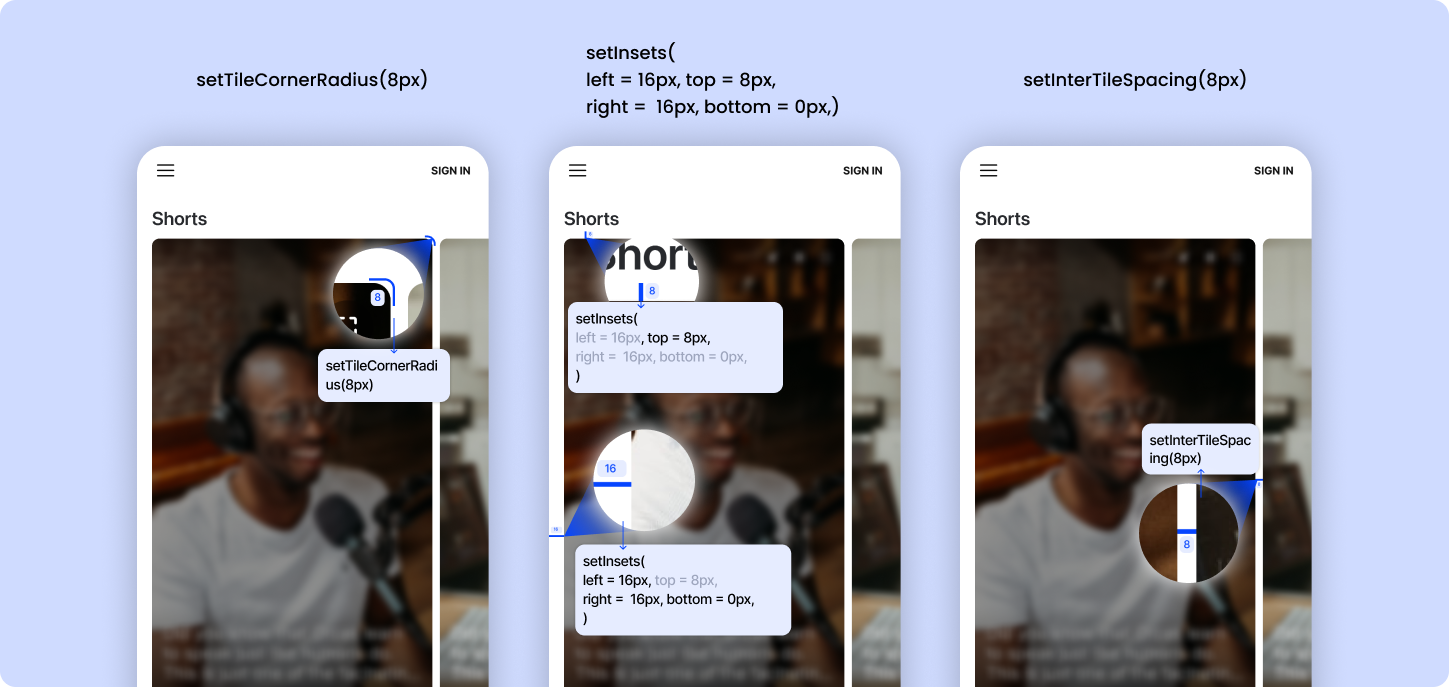
Add user specific parameters (Optional) a. name - This is an optional string parameter. Pass this parameter for signup/login. b. mobile - This is an optional string parameter. Pass this parameter for signup/login. c. email - This is an optional string parameter. Pass this parameter for signup/login. d. nickname - This is an optional string parameter. If nickname is available in genuin ecosystem it will be used, else genuin will generate of its own. e. profile_image: This is an optional string parameter. Pass the profile_image parameter if you want to show the profile image in the SDK. Add contextual parameters (Optional) a. page_context - This is an optional string parameter. Pass this parameter for ‘context’, so that feed could load based on that context. b. lat - This is an optional float parameter. Pass this parameter in geo so that the feed could load based on the latitude and context. c. long - This is an optional float parameter. Pass this parameter in geo so that the feed could load based on the longitude and context. Add design configurations (Optional) a. interTileSpacing - spacing between the carousel’s view items. It’s default value is 8dp b. carouselInset - edge insets for carousel’s view. It’s default value is top: 8dp, left: 16dp, bottom: 0dp, right: 16dp c. tileCornerRadius - cornerRadius for the carousel’s view items. It’s default value is 8dp 3. Manage carousel videos auto-play
override fun onResume() {
    super.onResume()
    genuinEmbedView.play()
}

override fun onPause() {
    genuinEmbedView.pause()
    super.onPause()
}

override fun onDestroy() {
    genuinEmbedView.release()
    super.onDestroy()
}

4. Load embed feed asynchronously: In order to load embed feeds asynchronously, instead of calling load(), use loadAsync with a callback (as shown). This callback will be triggered once the process of fetching data is complete, along with a boolean flag indicating whether the operation was successful and non-empty feed was retrieved.

genuinEmbedView.loadAsync {
  success ->
    if (success) { 
      binding.genuinEmbedView.visibility = View.VISIBLE
    }
}


Full Screen Embed

Put below code in activity_full_embed.xml file

<?xml version="1.0" encoding="utf-8"?>
<LinearLayout xmlns:android="http://schemas.android.com/apk/res/android"
    android:layout_width="match_parent"
    android:layout_height="match_parent"
    android:orientation="vertical"
    xmlns:app="http://schemas.android.com/apk/res-auto">

    <FrameLayout
        android:id="@+id/frameLayout"
        android:layout_width="match_parent"
        android:layout_height="match_parent"/>
</LinearLayout>
Put below code in FullEmbedActivity.kt file

import com.begenuin.core.ui.fragment.FeedEmbedFragment

class FullEmbedActivity : AppCompatActivity() {

    override fun onCreate(savedInstanceState: Bundle?) {
        super.onCreate(savedInstanceState)
        setContentView(R.layout.activity_full_embed)

        //This is Optional
        val params = HashMap<String, Any>()
        params["name"] = "John Doe"
        params["email"] = "john.doe@begenuin.com"
        params["nickname"] = "john"
        params["mobile"] = "1XXXXXXXXXX"

        //This is Optional
        val contextualParams = HashMap<String, Any>()
        contextualParams["page_context"] = pageContext
        val geoJson = JSONObject()
        geoJson.put("lat", XXXX.XXX)
        geoJson.put("long", XXXX.XXX)
        contextualParams["geo"] = geoJson.toString()

        val feedEmbedFragment = FeedEmbedFragment.newInstance(
               embedId = "YOUR_EMBED_ID", 
               uniqueId="UNIQUE_ID",
               interactionDeepLink = "YOUR_DEEPLINK",
               isDirectDeepLinkEnabled = false,
               isShowProfileEnabled = false,
               ssoToken = "YOUR_SSO_TOKEN",
               params = params // User specific params,
               contextualParams = contextualParams
            )
        feedEmbedFragment.let {
            supportFragmentManager.beginTransaction()
                .add(R.id.frameLayout, it)
                .addToBackStack("EmbedFullFeed").commit()
        }
    }
}


We need to pass below arguments in order to cofigure FullScreenEmbed.
  1. embedId = The Embed Id that you want to load.
  2. uniqueId = This is an optional parameter. This uniqueId is used when we need to display same embed in multiple/same screen. We need to provide uniqueId for the same embedId in multiple/same screen.
  3. interactionDeepLink = This is an optional parameter. You can pass a deeplink URL in this parameter. If a deeplink URL is given then all the interaction/clicks in the full screen view will redirect to the deeplink URL given. If not passed then the regular flow will work. It should be a correct URL else user will not be redirected.
  4. isDirectDeepLinkEnabled = This is an optional boolean parameter. Default value is false. If this parameter is true then all the interaction/clicks in the full screen view will redirect to the specific video in white labelled app associated with video and also value of this parameter “interactionDeepLink” will be ignored. If not passed then the regular flow will work.
Note: For using isDirectDeepLinkEnabled parameter, you must have white labelled your domain first and also integrated the Handling deep link part in your main app in which you want to redirect this video to.
  1. isShowProfileEnabled = This is an optional boolean parameter. Default value is false. If this parameter is true and also if user is logged in than Profile picture will be visible in full screen view (right side top corner). On clicking the profile picture user will see the account settings and logout options.
  2. ssoToken: This is an optional parameter. To auto login in the SDK, you shall pass “YOUR_SSO_TOKEN” in order to implement Embed with SSO in your app.
Add user specific parameters (Optional) a. name - This is an optional string parameter. Pass this parameter for signup/login. b. mobile - This is an optional string parameter. Pass this parameter for signup/login. c. email - This is an optional string parameter. Pass this parameter for signup/login. d. nickname - This is an optional string parameter. If nickname is available in genuin ecosystem it will be used, else genuin will generate of its own. e. profile_image: This is an optional string parameter. Pass the profile_image parameter if you want to show the profile image in the SDK. Add contextual parameters (Optional) a. page_context - This is an optional string parameter. Pass this parameter for ‘context’, so that feed could load based on that context. b. lat - This is an optional float parameter. Pass this parameter in geo so that the feed could load based on the latitude and context. c. long - This is an optional float parameter. Pass this parameter in geo so that the feed could load based on the longitude and context.

Standard Wall Embed

Put below code in activity_standard_wall_embed.xml file

<?xml version="1.0" encoding="utf-8"?>
<LinearLayout xmlns:android="http://schemas.android.com/apk/res/android"
    android:layout_width="match_parent"
    android:layout_height="match_parent"
    android:orientation="vertical"
    xmlns:app="http://schemas.android.com/apk/res-auto">

    <FrameLayout
        android:id="@+id/frameLayout"
        android:layout_width="match_parent"
        android:layout_height="match_parent"/>
</LinearLayout>
Put below code in StandardWallEmbedActivity.kt file

import com.begenuin.core.ui.fragment.FeedEmbedFragment

class StandardWallEmbedActivity : AppCompatActivity() {

    override fun onCreate(savedInstanceState: Bundle?) {
        super.onCreate(savedInstanceState)
        setContentView(R.layout.activity_standard_wall_embed)

        //This is Optional
        val params = HashMap<String, Any>()
        params["name"] = "John Doe"
        params["email"] = "john.doe@begenuin.com"
        params["nickname"] = "john"
        params["mobile"] = "1XXXXXXXXXX"

        //This is Optional
        val contextualParams = HashMap<String, Any>()
        contextualParams["page_context"] = pageContext
        val geoJson = JSONObject()
        geoJson.put("lat", XXXX.XXX)
        geoJson.put("long", XXXX.XXX)
        contextualParams["geo"] = geoJson.toString()


        val feedEmbedFragment = FeedEmbedFragment.newInstance(
               embedId = "YOUR_EMBED_ID", 
               uniqueId="UNIQUE_ID",
               interactionDeepLink = "YOUR_DEEPLINK",
               isDirectDeepLinkEnabled = false,
               isShowProfileEnabled = false,
               ssoToken = "YOUR_SSO_TOKEN",
               params = params, // User specific params
               contextualParams = contextualParams // Contextual params
            )

        feedEmbedFragment.let {
            supportFragmentManager.beginTransaction()
                .add(R.id.frameLayout, it)
                .addToBackStack("EmbedStandardWallFeed").commit()
        }
    }
}


We need to pass below arguments in order to cofigure StandardWallEmbed.
  1. embedId = The Embed Id that you want to load.
  2. uniqueId = This is an optional parameter. This uniqueId is used when we need to display same embed in multiple/same screen. We need to provide uniqueId for the same embedId in multiple/same screen.
  3. isShowProfileEnabled = This is an optional boolean parameter. Default value is false. If this parameter is true and also if user is logged in than Profile picture will be visible in full screen view (right side top corner). On clicking the profile picture user will see the account settings and logout options.
  4. isDirectDeepLinkEnabled = This is an optional boolean parameter. Default value is false. If this parameter is true then all the interaction/clicks in the full screen view will redirect to the specific video in white labelled app associated with video and also value of this parameter “interactionDeepLink” will be ignored. If not passed then the regular flow will work.
Note: For using isDirectDeepLinkEnabled parameter, you must have white labelled your domain first and also integrated the Handling deep link part in your main app in which you want to redirect this video to.
  1. isShowProfileEnabled = This is an optional boolean parameter. Default value is false. If this parameter is true and also if user is logged in than Profile picture will be visible in full screen view (right side top corner). On clicking the profile picture user will see the account settings and logout options.
  2. ssoToken: This is an optional parameter. To auto login in the SDK, you shall pass “YOUR_SSO_TOKEN” in order to implement Embed with SSO in your app.
Add user specific parameters (Optional) a. name - This is an optional string parameter. Pass this parameter for signup/login. b. mobile - This is an optional string parameter. Pass this parameter for signup/login. c. email - This is an optional string parameter. Pass this parameter for signup/login. d. nickname - This is an optional string parameter. If nickname is available in genuin ecosystem it will be used, else genuin will generate of its own. e. profile_image: This is an optional string parameter. Pass the profile_image parameter if you want to show the profile image in the SDK. Add contextual parameters (Optional) a. page_context - This is an optional string parameter. Pass this parameter for ‘context’, so that feed could load based on that context. b. lat - This is an optional float parameter. Pass this parameter in geo so that the feed could load based on the latitude and context. c. long - This is an optional float parameter. Pass this parameter in geo so that the feed could load based on the longitude and context.

Embed in Compose

Note: Make sure you have followed the First 3 installation steps in order to implement the Carousel Embed
Refer to Carousel View in mobile.
@Composable
fun CarouselComposeViewWrapper(
    modifier: Modifier = Modifier,
    embedId: String,
)
{
    val context = LocalContext.current
    val activity = context as? Activity?: throw IllegalStateException("Context is not an Activity!")

    AndroidView(
        modifier = modifier,
        factory = { viewContext ->
            // Creates view
            GenuinEmbedView(viewContext)
                .setEmbedParams(
                    embedId,
                )
                .setActivity(activity)
                .load()
        }
    )
}

Note: Carousel Container height must be fixed or match_parent. It can not be wrap_content else carousel embed will not appear.
Example Usage

CarouselComposeViewWrapper(
        embedId = "YOUR_EMBED_ID",
        modifier = Modifier.fillMaxWidth().height(400.dp) // Height can be dynamic
    )
Note: To auto login in the SDK, you shall pass “YOUR_SSO_TOKEN”(setSSOToken("YOUR_SSO_TOKEN")) in order to implement Embed with SSO in your app.
To configure the EmbedParams based on your need you can pass the below values.
  1. embedId = The Embed Id that you want to load.
  2. uniqueId = This is an optional parameter. This uniqueId is used when we need to display same embed in multiple/same screen. We need to provide uniqueId for the same embedId in multiple/same screen.
  3. interactionDeepLink = This is an optional parameter. You can pass a deeplink URL in this parameter. If a deeplink URL is given then all the interaction/clicks in the full screen view will redirect to the deeplink URL given. If not passed then the regular flow will work. It should be a correct URL else user will not be redirected.
  4. isDirectDeepLinkEnabled = This is an optional boolean parameter. Default value is false. If this parameter is true then all the interaction/clicks in the full screen view will redirect to the specific video in white labelled app associated with video and also value of this parameter “interactionDeepLink” will be ignored. If not passed then the regular flow will work.
Note: For using isDirectDeepLinkEnabled parameter, you must have white labelled your domain first and also integrated the Handling deep link part in your main app in which you want to redirect this video to.
  1. isShowProfileEnabled = This is an optional boolean parameter. Default value is false. If this parameter is true and also if user is logged in than Profile picture will be visible in full screen view (right side top corner). On clicking the profile picture user will see the account settings and logout options.
Add user specific parameters (Optional) a. name - This is an optional string parameter. Pass this parameter for signup/login. b. mobile - This is an optional string parameter. Pass this parameter for signup/login. c. email - This is an optional string parameter. Pass this parameter for signup/login. d. nickname - This is an optional string parameter. If nickname is available in genuin ecosystem it will be used, else genuin will generate of its own. e. profile_image: This is an optional string parameter. Pass the profile_image parameter if you want to show the profile image in the SDK. Add contextual parameters (Optional) a. page_context - This is an optional string parameter. Pass this parameter for ‘context’, so that feed could load based on that context. b. lat - This is an optional float parameter. Pass this parameter in geo so that the feed could load based on the latitude and context. c. long - This is an optional float parameter. Pass this parameter in geo so that the feed could load based on the longitude and context. Add design configurations (Optional) a. interTileSpacing - spacing between the carousel’s view items. It’s default value is 8dp b. carouselInset - edge insets for carousel’s view. It’s default value is top: 8dp, left: 16dp, bottom: 0dp, right: 16dp c. tileCornerRadius - cornerRadius for the carousel’s view items. It’s default value is 8dp

Standard Wall Embed

To load standardwall the parent activity must be FragmentActivity

@Composable
fun StandardWallComposeFragmentWrapper(
    modifier: Modifier = Modifier,
    embedId: String,
    ) {

    val context = LocalContext.current
    val activity = context as? FragmentActivity
        ?: throw IllegalStateException("Context is not a FragmentActivity")

    AndroidView(
        factory = { ctx ->
            FragmentContainerView(ctx).apply {
                id = View.generateViewId()

                // Load fragment just once
                if (activity.supportFragmentManager.findFragmentById(id) == null) {
                    activity.supportFragmentManager.beginTransaction()
                        .replace(id, FeedEmbedFragment.newInstance(embedId = embedId))
                        .commit()
                }
            }
        },
        modifier = modifier
    )
}

Example usage

StandardWallComposeFragmentWrapper(
                            embedId = "YOUR_EMBED_ID",
                            modifier = Modifier.fillMaxSize()
                        )

We need to pass below arguments in order to cofigure StandardWallEmbed.
  1. embedId = The Embed Id that you want to load.
  2. uniqueId = This is an optional parameter. This uniqueId is used when we need to display same embed in multiple/same screen. We need to provide uniqueId for the same embedId in multiple/same screen.
  3. isShowProfileEnabled = This is an optional boolean parameter. Default value is false. If this parameter is true and also if user is logged in than Profile picture will be visible in full screen view (right side top corner). On clicking the profile picture user will see the account settings and logout options.
  4. isDirectDeepLinkEnabled = This is an optional boolean parameter. Default value is false. If this parameter is true then all the interaction/clicks in the full screen view will redirect to the specific video in white labelled app associated with video and also value of this parameter “interactionDeepLink” will be ignored. If not passed then the regular flow will work.
Note: For using isDirectDeepLinkEnabled parameter, you must have white labelled your domain first and also integrated the Handling deep link part in your main app in which you want to redirect this video to.
  1. isShowProfileEnabled = This is an optional boolean parameter. Default value is false. If this parameter is true and also if user is logged in than Profile picture will be visible in full screen view (right side top corner). On clicking the profile picture user will see the account settings and logout options.
  2. ssoToken: This is an optional parameter. To auto login in the SDK, you shall pass “YOUR_SSO_TOKEN” in order to implement Embed with SSO in your app.
Add user specific parameters (Optional) a. name - This is an optional string parameter. Pass this parameter for signup/login. b. mobile - This is an optional string parameter. Pass this parameter for signup/login. c. email - This is an optional string parameter. Pass this parameter for signup/login. d. nickname - This is an optional string parameter. If nickname is available in genuin ecosystem it will be used, else genuin will generate of its own. e. profile_image: This is an optional string parameter. Pass the profile_image parameter if you want to show the profile image in the SDK. Add contextual parameters (Optional) a. page_context - This is an optional string parameter. Pass this parameter for ‘context’, so that feed could load based on that context. b. lat - This is an optional float parameter. Pass this parameter in geo so that the feed could load based on the latitude and context. c. long - This is an optional float parameter. Pass this parameter in geo so that the feed could load based on the longitude and context.

Placement

1. Load Placement with XML

<LinearLayout
      android:id="@+id/llPlacementContainer"
      android:layout_width="match_parent"
      android:layout_height="300dp">

      <com.begenuin.core.ui.customview.embed.GenuinPlacementView
        android:id="@+id/carousel"
        android:layout_width="match_parent"
        android:layout_height="match_parent"
        android:layout_marginTop="16dp"
        app:interTileSpacing="12dp"
        app:leftInset="12dp"
        app:topInset="12dp"
        app:rightInset="12dp"
        app:bottomInset="12dp"
        app:tileCornerRadius="12dp"
        />
</LinearLayout>

Note: Placement Container height must be fixed or match_parent. It can not be wrap_content else placement will not appear.

//This is Optional
val params = HashMap<String, Any>()
params["name"] = "John Doe"
params["email"] = "john.doe@begenuin.com"
params["nickname"] = "john"
params["mobile"] = "1XXXXXXXXXX"

//This is Optional
val geoJson = JSONObject()
geoJson.put("lat", XX.XXX)
geoJson.put("long",  XX.XXX)
geoJson.put("radius_limit", <RADIUS_LIMIT>)

val placeJson = JSONObject()
placeJson.put("country", "<COUNTRY_CODE>")
placeJson.put("state", "<STATE>")
placeJson.put("city", "<CITY>")
placeJson.put("zipcode", <ZIP>)

val userSegmentsJson = JSONObject()
userSegmentsJson.put("age", "<AGE>")
userSegmentsJson.put("min_age", "<MIN_AGE>")
userSegmentsJson.put("max_age", "<MAX_AGE>")
userSegmentsJson.put("segment", "<SEGMENT>")
userSegmentsJson.put("gender", "M/F/O")
userSegmentsJson.put("race", "<RACE>")

val contextualParams = HashMap<String, Any>()
contextualParams["page_context"] = "<PAGE_CONTEXT>"
contextualParams["geo"] = geoJson.toString()
contextualParams["place"] = placeJson.toString()
contextualParams["time"] = <timestamp>
contextualParams["user_segments"] = userSegmentsJson.toString()
contextualParams["url"] = "https://url/"
contextualParams["brands_ids"] = JSONArray(arrayListOf(brandId1, brandId2))
contextualParams["community_ids"] = JSONArray(arrayListOf("comm_id1","comm_id2"))
contextualParams["loop_ids"] = JSONArray(arrayListOf("loop_id1", "loop_id2"))
contextualParams["user_interest"] = JSONArray(arrayListOf(""))
contextualParams["posted_by_user_ids"] = JSONArray(arrayListOf("user_id1", "user_id2"))
contextualParams["previous_page_context"] = "<PREVIOUS_PAGE_CONTEXT>"
contextualParams["user_context"] = "<CONTEXT>"


genuinPlacementView.apply {
            setPlacementParams(
               placementId = "YOUR_PLACEMENT_ID", 
               styleId = "YOUR_STYLE_ID", 
               uniqueId="UNIQUE_ID",
               interactionDeepLink = "YOUR_DEEPLINK",
               isDirectDeepLinkEnabled = false,
            )
            setActivity(activityContext)
            setSSOToken("YOUR_SSO_TOKEN")
            setParams(params) // User specific params
            setInterTileSpacing(24) // values should be in pixels
            setInsets(
               left = 24, // values should be in pixels
               top = 24, // values should be in pixels
               right = 24, // values should be in pixels
               bottom = 24, // values should be in pixels
            )
            setTileCornerRadius(24) // values should be in pixels
            setContextualParams(contextualParams) // Contextual params
            load()
        }
2. Load Placement Programmatically

<LinearLayout
     android:id="@+id/llPlacementContainer"
     android:layout_width="match_parent"
     android:layout_height="300dp">           
</LinearLayout>
Note: Placement Container height must be fixed or match_parent. It can not be wrap_content else placement will not appear.
val genuinPlacementView = GenuinPlacementView(context)
llPlacementContainer.addView(genuinPlacementView)

//This is Optional
val params = HashMap<String, Any>()
params["name"] = "John Doe"
params["email"] = "john.doe@begenuin.com"
params["nickname"] = "john"
params["mobile"] = "1XXXXXXXXXX"

//This is Optional
val geoJson = JSONObject()
geoJson.put("lat", XX.XXX)
geoJson.put("long",  XX.XXX)
geoJson.put("radius_limit", <RADIUS_LIMIT>)

val placeJson = JSONObject()
placeJson.put("country", "<COUNTRY_CODE>")
placeJson.put("state", "<STATE>")
placeJson.put("city", "<CITY>")
placeJson.put("zipcode", <ZIP>)

val userSegmentsJson = JSONObject()
userSegmentsJson.put("age", "<AGE>")
userSegmentsJson.put("min_age", "<MIN_AGE>")
userSegmentsJson.put("max_age", "<MAX_AGE>")
userSegmentsJson.put("segment", "<SEGMENT>")
userSegmentsJson.put("gender", "M/F/O")
userSegmentsJson.put("race", "<RACE>")

val contextualParams = HashMap<String, Any>()
contextualParams["page_context"] = "<PAGE_CONTEXT>"
contextualParams["geo"] = geoJson.toString()
contextualParams["place"] = placeJson.toString()
contextualParams["time"] = <timestamp>
contextualParams["user_segments"] = userSegmentsJson.toString()
contextualParams["url"] = "https://url/"
contextualParams["brands_ids"] = JSONArray(arrayListOf(brandId1, brandId2))
contextualParams["community_ids"] = JSONArray(arrayListOf("comm_id1","comm_id2"))
contextualParams["loop_ids"] = JSONArray(arrayListOf("loop_id1", "loop_id2"))
contextualParams["user_interest"] = JSONArray(arrayListOf(""))
contextualParams["posted_by_user_ids"] = JSONArray(arrayListOf("user_id1", "user_id2"))
contextualParams["previous_page_context"] = "<PREVIOUS_PAGE_CONTEXT>"
contextualParams["user_context"] = "<CONTEXT>"


genuinPlacementView.apply {
            setPlacementParams(
               placementId = "YOUR_PLACEMENT_ID", 
               styleId = "YOUR_STYLE_ID", 
               uniqueId="UNIQUE_ID",
               interactionDeepLink = "YOUR_DEEPLINK",
               isDirectDeepLinkEnabled = false,
            )
            setActivity(activityContext)
            setInterTileSpacing(24) // values should be in pixels
            setInsets(
               left = 24, // values should be in pixels
               top = 24, // values should be in pixels
               right = 24, // values should be in pixels
               bottom = 24, // values should be in pixels
            )
            setTileCornerRadius(24) // values should be in pixels
            setSSOToken("YOUR_SSO_TOKEN")
            setParams(params) // User specific params
            setContextualParams(contextualParams) // Contextual params
            load()
        }
Note: To initialise the Placement you need to add your activity context (setActivity(activityContext)) in which you want the placement. To auto login in the SDK, you shall pass “YOUR_SSO_TOKEN”(setSSOToken("YOUR_SSO_TOKEN")) in order to implement Placement with SSO in your app.
To configure the PlacementParams based on your need you can pass the below values.
  1. placementId = The Placement Id that you want to load.
  2. styleId = The Style Id that you want to load.
  3. uniqueId = This is an optional parameter. This uniqueId is used when we need to display same placement in multiple/same screen. We need to provide uniqueId for the same placementId in multiple/same screen.
  4. interactionDeepLink = This is an optional parameter. You can pass a deeplink URL in this parameter. If a deeplink URL is given then all the interaction/clicks in the full screen view will redirect to the deeplink URL given. If not passed then the regular flow will work. It should be a correct URL else user will not be redirected.
  5. isDirectDeepLinkEnabled = This is an optional boolean parameter. Default value is false. If this parameter is true then all the interaction/clicks in the full screen view will redirect to the specific video in white labelled app associated with video and also value of this parameter “interactionDeepLink” will be ignored. If not passed then the regular flow will work.
Note: For using isDirectDeepLinkEnabled parameter, you must have white labelled your domain first and also integrated the Handling deep link part in your main app in which you want to redirect this video to.
Add user specific parameters (Optional) a. name - This is an optional string parameter. Pass this parameter for signup/login. b. mobile - This is an optional string parameter. Pass this parameter for signup/login. c. email - This is an optional string parameter. Pass this parameter for signup/login. d. nickname - This is an optional string parameter. If nickname is available in genuin ecosystem it will be used, else genuin will generate of its own. e. profile_image: This is an optional string parameter. Pass the profile_image parameter if you want to show the profile image in the SDK. Add contextual parameters (Optional) a. page_context - This is an optional string parameter. Pass this parameter for ‘context’, so that feed could load based on that context. b. lat - This is an optional float parameter. Pass this parameter in geo so that the feed could load based on the latitude and context. c. long - This is an optional float parameter. Pass this parameter in geo so that the feed could load based on the longitude and context. Add design configurations (Optional) a. interTileSpacing - spacing between the carousel’s view items. It’s default value is 8dp b. Inset - edge insets for placement’s view. It’s default value is top: 8dp, left: 16dp, bottom: 0dp, right: 16dp c. tileCornerRadius - cornerRadius for the carousel’s view items. It’s default value is 8dp 3. Manage carousel videos auto-play

override fun onResume() {
    super.onResume()
    genuinPlacementView.play()
}

override fun onPause() {
    genuinPlacementView.pause()
    super.onPause()
}

override fun onDestroy() {
    genuinPlacementView.release()
    super.onDestroy()
}

4. Load placement feed asynchronously: In order to load placement feeds asynchronously, instead of calling load(), use loadAsync with a callback (as shown). This callback will be triggered once the process of fetching data is complete, along with a boolean flag indicating whether the operation was successful and non-empty feed was retrieved.

genuinPlacementView.loadAsync {
  success ->
    if (success) { 
      binding.genuinPlacementView.visibility = View.VISIBLE
    }
}


Handle Login : via AutoLogin Approach

To Auto Login in the SDK, You need to call below method, whenever user is log in to your application.
Note: You don’t need to call the below method if you have implemented the Embed/Placement With SSO already.

GenuinSDK.ssoLogin(context = "YOUR_CONTEXT", ssoToken = "YOUR_SSO_TOKEN")

Optional Parameters

Below are the optional parameters you can add with the function:

val params = HashMap<String, Any>()

params["name"] = "John Doe"
params["email"] = "john.doe@begenuin.com"
params["nickname"] = "john"
params["mobile"] = "1XXXXXXXXXX"

GenuinSDK.ssoLogin(
    context = "YOUR_CONTEXT", 
    ssoToken = "YOUR_SSO_TOKEN",
    params = params //This is optional
)

Add user specific parameters (Optional)
  1. name - This is an optional string parameter. Pass this parameter for ‘signup/login’.
  2. mobile - This is an optional string parameter. Pass this parameter for signup/login.
  3. email - This is an optional string parameter. Pass this parameter for signup/login.
  4. nickname - This is an optional string parameter. If nickname is available in genuin ecosystem it will be used, else genuin will generate of its own.
  5. profile_image: This is an optional string parameter. Pass the profile_image parameter if you want to show the profile image in the SDK.

Optional Callback


GenuinSDK.ssoLogin(
    context = "YOUR_CONTEXT", 
    ssoToken = "YOUR_SSO_TOKEN",
    params = "YOUR_OPTIONAL_PARAMS",
    onComplete = {
        isSuccess: Boolean ->
        //Manage callback for Login Completion
    }
)

Custom Login

If you want to handle login process as per your requirement then follow the below steps:

GenuinSDK.registerInterface(object : GenuinInterface {
            override fun onLogin(context: Activity) {
                /*
                    This callback will be triggered when user attempts to login
                    within one of the Genuin embeds. Application login process
                    should be initiated here.

                    When your application's auth process is successfully completed,
                    call GenuinSDK.ssoLogin(context, "ssoToken") to automatically
                    manage SDK login.
                */
            }
})

Handle Logout : via AutoLogin Approach

Whenever user logs out from your application call the below method.
GenuinSDK.ssoLogout(context = “YOUR_CONTEXT”)

Optional Callback


GenuinSDK.ssoLogout(
    context = "YOUR_CONTEXT",
    onComplete = {
        isSuccess: Boolean ->
        //Manage callback for Logout Completion
    }
)

Note: Make sure you have followed the First 3 installation steps in order to handle the deep link.
Prerequisite:
  1. Make sure you have white labelled your community by following these steps.
  2. Follow the steps given in the below URL to integrate deeplink in your app https://developer.android.com/studio/write/app-link-indexing
Note : Here host will be your “YOUR_WHITE-LABELLED_DOMAIN”
  1. After completing deeplink setup, your assetlinks.json file should look like below

[{"target":{"package_name":"YOUR_PACKAGE_NAME","sha256_cert_fingerprints":["YOUR_KEYSTORE'S_SHA256_FINGERPRINTS"],"namespace":"android_app"},"relation":["delegate_permission/common.handle_all_urls"]}]

  1. Host assetlinks.json file on the white labeled domain at https://YOUR_WHITE-LABELLED_DOMAIN/.well-known/assetlinks.json
To Handle Our Deep Link In Your App You can call the below method immediately after receiving deeplink or you can wait until your app’s home screen is loaded.

GenuinSDK.handleDeepLink(context = "YOUR_CONTEXT", intent = "YOUR_DEEPLINK_ACTIVITY_INTNET")

Note: Need to call this function everytime your app receives any deeplink. This method will handle deeplink if it is our’s otherwise it will ignore that.

Optional LinkOutInterceptor

If you want to intercept Linkout clicks, you can implement LinkOutInterceptor as below:

GenuinSDK.registerLinkOutInterceptor(object : GenuinLinkOutInterceptor {

    override fun onLinkOutIntercept(intent: Intent, context: Activity) {
                /*
                    This callback will be triggered when user clicks on linkouts 
                    from any video and if it is found that link is handled by your app.

                    You will receive whole intent data same as we will be receiving while 
                    deeplink is clicked so you can handle the deeplink redirection from here
                    in your app
                */
    }
})

Handling Push Notifications

Note: Make sure you have followed the First 3 installation steps in order to handle the push notifications.
Prerequisite:
  1. Create an app in your firebase using these steps
  2. Download the google-services.json file and add it into your app.
  3. Integrate firebase into your app by following these steps
Get firebase token and register it with Genuin SDK

private fun getFirebaseToken(){
        FirebaseMessaging.getInstance().token
            .addOnCompleteListener { task: Task<String> ->
                if (!task.isSuccessful) {
                    return@addOnCompleteListener
                }
                // Get new FCM registration token
                val token = task.result
                // Register token with Genuin SDK
                GenuinSDK.registerFCMToken("YOUR_CONTEXT", token)
            }
    }

Handle foreground notifications (When your app is in foreground)

class MyFirebaseMessagingService : FirebaseMessagingService() {
    override fun onMessageReceived(remoteMessage: RemoteMessage) {
        super.onMessageReceived(remoteMessage)
        val data: Map<String, String> = remoteMessage.getData()
        if (GenuinSDK.willHandleForegroundNotification(data)) {
            val message = remoteMessage.notification?.body ?: ""
            GenuinSDK.handleForegroundNotifications(
                context = this,
                data = data,
                message = message,
                smallNotificationIcon = R.drawable.ic_small_notifications // Your app's notification small icon
            )
        } else {
            // Handle other push notifications for your app
        }
    }

    /**
     * There are two scenarios when onNewToken is called:
     * 1) When a new token is generated on initial app startup
     * 2) Whenever an existing token is changed
     * Under #2, there are three scenarios when the existing token is changed:
     * A) App is restored to a new device
     * B) User uninstalls/reinstall the app
     * C) User clears app data
     */
    override fun onNewToken(s: String) {
        super.onNewToken(s)
        GenuinSDK.registerFCMToken(this, s)
    }

}

Note: GenuinSDK.willHandleForegroundNotification(data: Map<String, String>) function will check whether GenuinSDK will handle the given notification or not when app is in foreground.
Handle notifications while app is running in background or closed
  • Whenever user clicks on notifications, you will get the notification payload in your launcher activity.
YourLauncherActivity.kt

if (GenuinSDK.willHandleNotification(intent)) {
     GenuinSDK.handleBackgroundNotifications(context = "YOUR_CONTEXT", intent)
}

Note: GenuinSDK.willHandleNotification(intent: Intent) function will check whether GenuinSDK will handle the given notification or not.

What’s next?

iOS SDK

Integrate iOS SDK in Your ecosystem.

Web SDK

Integrate Web SDK in your ecosystem.

React Native SDK

Integrate React Native SDK in your ecosystem.

Support

If you need any assistance or have any questions, feel free to email us at support@begenuin.com.